

 By
By Introduction
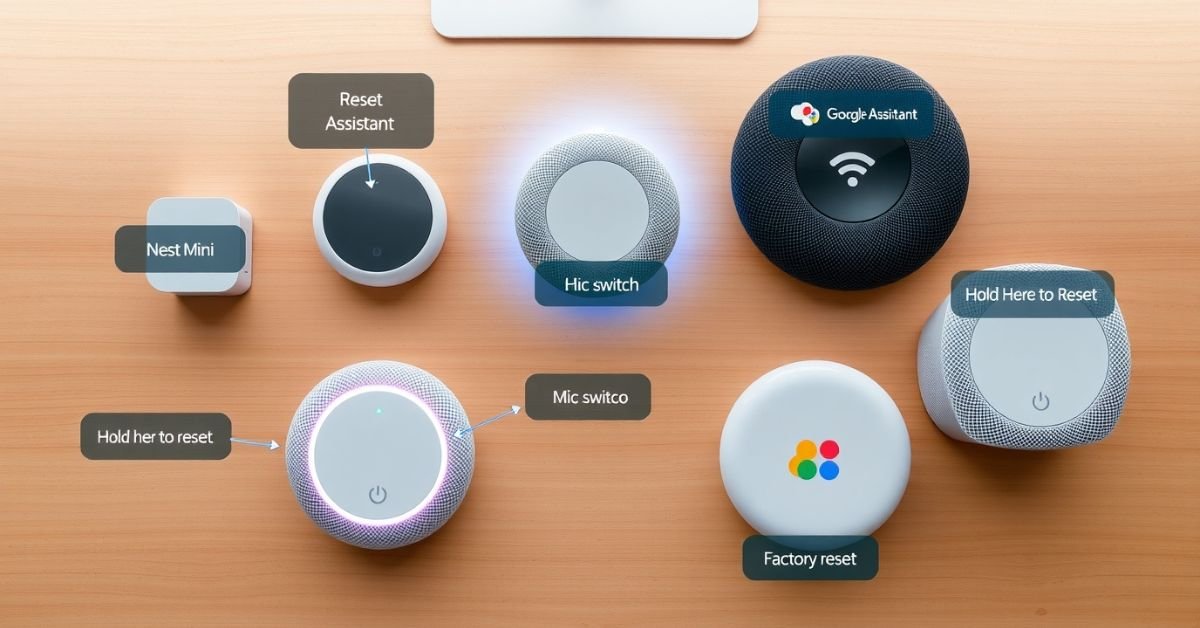
Smart speakers from Google Nest are excellent home appliances. They let you play music, make calls, manage other smart home tech, and get quick help from Google Assistant. But sometimes, your device might freeze, stop responding, or need a fresh start. That’s when knowing how to reset google home mini 2 comes in handy.
The Reset Google Home Mini 2, officially known as the Nest Mini (2nd Gen), continues to be one of the most popular smart speakers in U.S. homes. Whether you’re handing it off to someone else or troubleshooting a glitch, resetting is a quick fix but only if done right. Poor handling can lead to setup headaches or even connectivity issues with your smart devices.
In this article, we’ll walk you through how to reset your Google Home Mini 2, explain when you should or shouldn’t do it, troubleshoot related issues, and show you how this process fits into modern smart home usage in 2025. Whether you’re a tech-savvy user or new to smart speakers, this guide is built to help.
When Should You Reset Your Nest Speaker?
Resetting should not be your first move. Reset Google Home Mini 2 best used when other fixes fail or when you’re preparing the device for a new user or a new home setup.
| Condition | Action Needed | Notes |
| Device is unresponsive | Factory Reset | Returns speaker to default state |
| Minor app or connectivity glitch | Soft Restart (Reboot) | Try this before a full reset |
| Selling or gifting the device | Factory Reset | Clears all data, ready for new setup |
| Changing Wi-Fi network | Soft Reset / Manual Rejoin | Full reset not always needed |
| Mic not responding to “Hey Google” | Check Mute / Reboot | May not need a full factory reset |
Factory Reset Instructions by Device
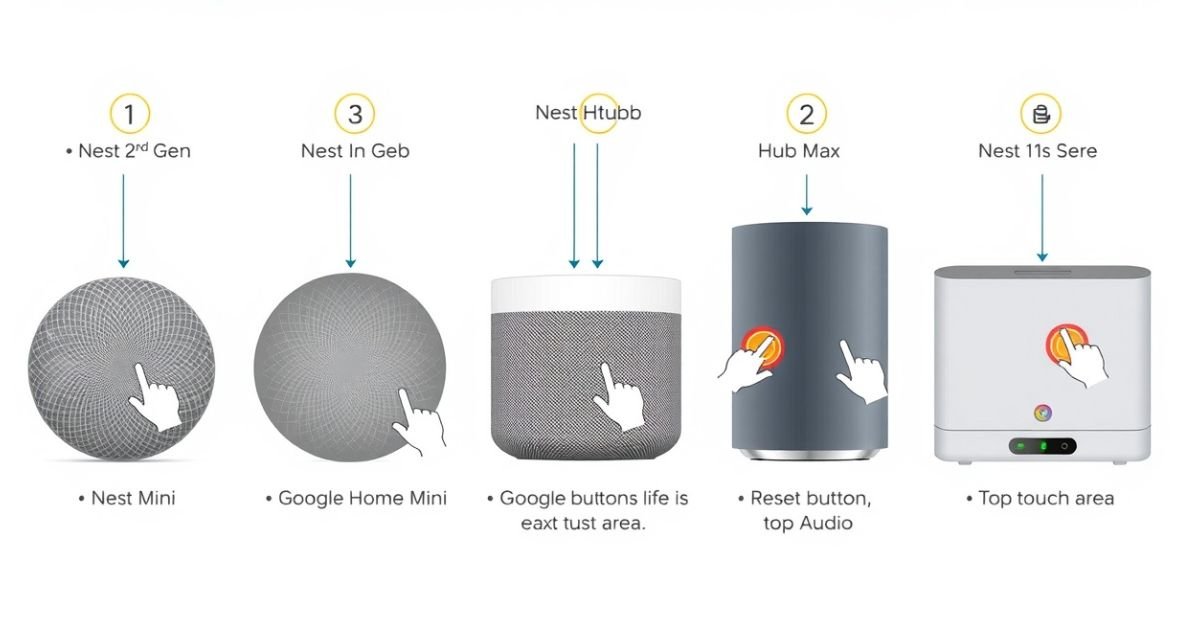
Important: A full factory reset will erase all your personalized data, including linked accounts, routines, and Wi-Fi info. Soft resets do not erase settings.
Nest Mini (2nd Gen) / Google Home Mini 2
- Flip the microphone switch to off (orange).
- Press and hold the center (top) of the speaker where the lights are for 15 seconds.
- You’ll hear a chime indicating the reset has started.
Google Home Mini (1st Gen)
- Turn the device upside down.
- Press and hold the reset button beneath the power cord.
- After about 15 seconds, you’ll hear a sound confirming the reset.
Google Nest Hub
- Press and hold both volume buttons (on the back) simultaneously.
- A countdown will appear after 10 seconds, confirming the reset is in progress.
Google Nest Hub Max
- Back up any stored footage beforehand.
- First, take the device out of the Google Home app.
- Hold the volume-up and volume-down buttons on the back for 10 seconds.
- Follow on-screen prompts.
Google Nest Audio
- Slide the microphone switch off (you’ll see orange lights).
- Press and hold the center top area for 15 seconds.
- A jingle plays to confirm the reset has started.
Soft Reset vs. Factory Reset: What’s the Difference?
| Reset Type | What It Does | When to Use |
| Soft Reset / Reboot | Power cycles the device without losing personal data | For basic glitches, freezes, or performance hiccups |
| Factory Reset | Wipes all settings, accounts, and customizations | When selling, troubleshooting major issues, changing owners |
To Perform a Soft Reset:
Simply unplug the device, wait for 30 seconds, and plug it back in.
What Happens After a Factory Reset?
A factory reset disconnects the device from your:
- Google Account
- Wi-Fi network
- Voice Match and personalization settings
- Smart home routines
To reconnect:
Open the Google Home app, tap the “+” icon > Set up a new device, and follow the prompts.
Common Post-Reset Issues & Fixes
- Device won’t reconnect to Wi-Fi: Double-check your password; move closer to the router.
- Assistant not responding: Make sure you’ve re-linked your Google account and Voice Match.
- No audio output: Check volume via voice or the Google Home app.
- Device not seen in the application: Verify your phone’s location and Bluetooth settings are turned on.
Tips to Avoid Needing Resets in the Future
- Keep firmware updated from the Google Home app.
- Assign static IP addresses to smart devices to reduce Wi-Fi dropouts.
- Place your speakers away from walls, microwaves, or obstructions.
- Limit how many gadgets share the same Wi-Fi channel.
Need to Double-Check Which Device You Have?
- Nest Mini (2nd Gen): Has a wall mount notch and better bass. Mute switch on the side.
- Home Mini (1st Gen): No wall mount. The reset button is under the device.
- Nest Audio: Taller, with a fabric body. LED lights show orange when muted.
- Nest Hubs: Feature a touchscreen with volume buttons at the back.
FAQs
Will reset google home mini 2 delete my Google account?
No, it only removes the device from your account, not your account itself.
Can I reset google home mini 2 using the Google Home app?
Not for a factory reset you must use the physical reset button.
Do I need to reset my Mini after a Wi-Fi password change?
Not always. Try updating the network settings in the app first.
Is reset google home mini 2 safe for the hardware?
Yes, as long as you follow the official method.
How can I tell if my reset google home mini 2 was successful?
The speaker won’t show your location or name or respond to “Hey Google” until you set it up again.
Conclusion
Resetting your Google Nest smart speaker whether it’s a Nest Mini, Nest Hub, or Nest Audio is a handy troubleshooting tool that can quickly resolve many common problems like unresponsiveness, Wi-Fi issues, or personalization glitches. It’s also the safest and most secure way to prepare your device for resale or handoff, making sure your data stays private.
Start small with a soft reset (simple restart) when possible it’s faster and won’t erase your settings. Use a factory reset only when necessary like when you’re selling the device or dealing with recurring problems that other fixes can’t solve. After resetting, you’ll need to set up the device from scratch using the Google Home app, so make sure your Wi-Fi is working and your Google account is ready to go. By following the right reset process for your specific device and situation, you’ll save time, avoid unnecessary frustration, and get your smart speaker back to working like new or ready for its next home.
Whether you’re a new smart home user or a tech-savvy enthusiast, knowing how and when to reset your Google Nest device makes managing your home technology easier and more secure.